It's painful to find that data was wiped by formatting the SD card mistakenly while following the Windows prompts: You need to format the disk in the drive before you can use it. Fortunately, your data still exists if there is no new data writing. And unformat SD card freeware can help you get back lost files easily and quickly.

SD card is the most commonly used media storage device which can be equipped on the mobile phone, digital camera, digital camcorder, portable game player, music player, etc. However, due to the off-brand flash memory chip or massive usage of the SD card day by day, there are always faults while using SD card. What's troubling is that the precious data, such as documents, videos, audios, photos stored in the SD card probably have gone away. However, we cannot lose them.
Indeed, if someone is unfamiliar with the operations of Windows or Mac, it is possible to follow the prompts to format the SD card while having no ideas that it can cause data loss. That's why we found many people asked in Quora: How to recover data from formatted SD card?
Anyway, the first thing you need to know is not follow the Windows prompts to format the SD card while you are having below common prompts on Windows:
1. You need to format the disk
2. SD Card shows 0 bytes
3. SD card turns into RAW
4. SD Card errors or corrupted
However, if you have formatted the SD card, Memory Stick, USB flash drive, pen drive or any other storage device, don't be panic, you can follow the best solution in this article with unformat SD card freeware to get back lost files.
Best unformat SD card freeware
You may have tried to find many data recovery software to unformat the SD card. However, none of them is free of charge or only offers you 1GB or 2GB to recover data from formatted SD card, if your data is over 1GB or 2GB, you have to pay for the license fee ranges from $69 to $350.
Can we find such software that offers a free trial with initial 30 days and can recover anything we want during the free trial, and after that, we can decide on our own to pay for an affordable annual or lifetime license?
The answer is yes. Bitwar Data Recovery is such an excellent unformat SD card freeware that you can simply download the software from Bitwar official website and then register an account, after sharing the software to one of your social profiles, such as Facebook, Twitter, Google+ and then you can obtain the 30 days free license. Within 30 days, you can recover accidentally deleted or formatted files, photos, documents, compressed files, video, audio from hard drive, external hard drive, USB flash drive, recycle bin or any other storage devices. You can find tutorials on Bitwar official website to find articles for different recovery purposes.
Here are two best solutions for SD card recovery.
The solutions for formatted SD card
Step 1. Download unformat SD card freeware -- Bitwar Data Recovery, install it on your computer, please remember that don't install it on your SD card!
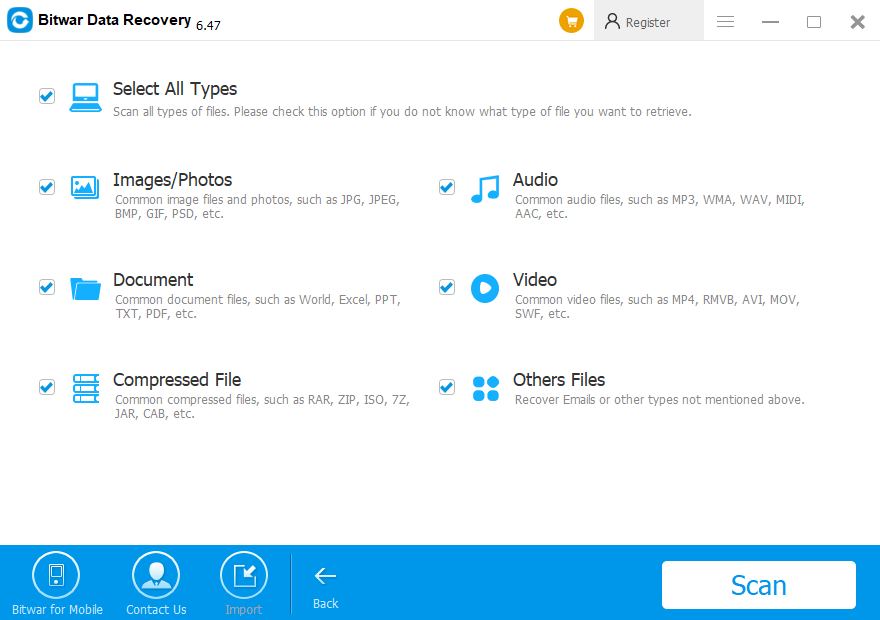
The software offers you three ways to preview the data
1. Double-click the file
2. Click the magnify button at the rightmost position of each file.
3. Turn to Preview Mode to generate thumbnails for files.
I prefer the third way to preview whole files with thumbnails; it's easy for me to check whether the files are desired or not. In addition, the software also offers a tree list with Type, Path, Time, by clicking each filter, you can easily short the recovery time. Moreover, you can enter the file name in the search bar at the right-top position of the software to find your data quickly.
Solution for unformatted SD card
After you connected the SD card with the computer, although sometimes Windows informs you that you need to format the disk or shows I/O error, you just don't believe in the prompts and cancel the window, then try to search solutions in Google, I have to say you perfectly escape the risk of losing data.
However, the SD card becomes inaccessible or turns into RAW that shows 0 bytes in properties.
You can select the SD card directly in the software that the device name starts with HD in Bitwar Data Recovery Software. It goes with a Dee Scan directly to search data on your SD card, after finding your data, click Recover button to save the data to the computer.
Let's have a try!
Please refer here for more about SD card data recovery.
评论
发表评论