Want to recover lost or deleted data from your Windows XP system? Free download Windows XP Data Recovery Software to recover a deleted file, photo, video, etc. It's one of the best full version data recovery freeware.
Windows XP is one of the most popular operating systems which has excellent performance, security, and reliability. Because of the large number of users, various kinds of problems on Windows XP operating system lead to unexpected data loss. How to recover lost data from the hard drive of Windows XP? Don't worry, this article will offer you a Windows XP data recovery software which is a fast, reliable and powerful freeware.
Best Windows XP data recovery software
Bitwar Data Recovery supports to restore lost data due to deletion, formatting, virus attacking, system crash or other unknown reasons under Windows XP/7/8/10, etc. This Windows XP data recovery software also supports memory card recovery, flash drive recovery, pen drive recovery, external hard drive recovery, etc. Only 3 simple steps will help you restore all lost data from the hard drive.
Steps to Restore data from Window XP
First, Please stop using the partition where has lost data to avoid data overwrite.
Then, free download Bitwar Data Recovery from Bitwar official website: https://www.bitwar.net/data-recovery-software/ and then install on a different partition. Follow the steps to recover data after installation.
Step 1: Launch Bitwar Data Recovery
Launch the Bitwar Data Recovery program and select the partition where lost data and click next.
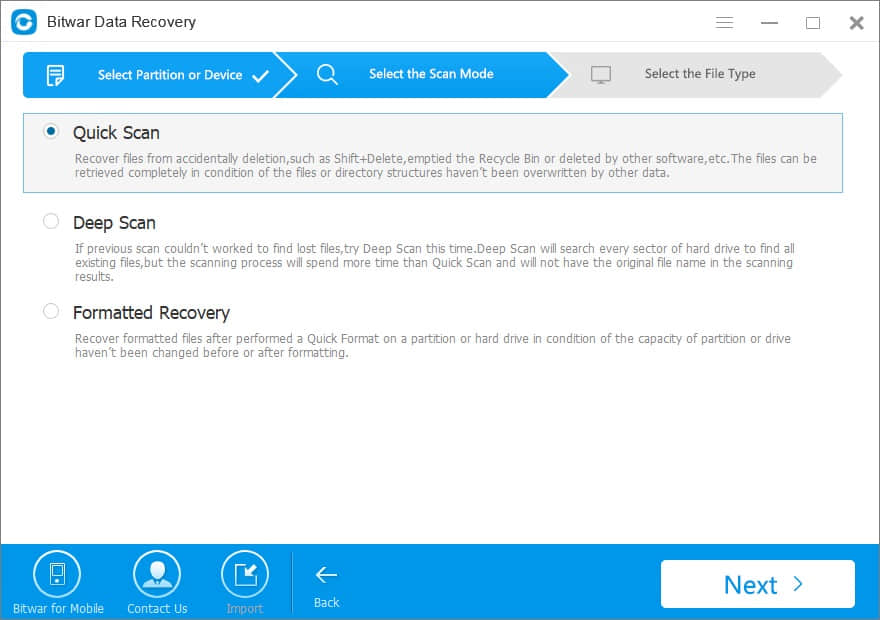
Step 2: Choose a scan mode
Select the scan mode based on the reason for the data loss and click Next.
Quick Scan: Select Quick Scan if you deleted data by shift +delete on the partition you selected or emptied from recycle bin. If files are not overridden by other data, files can be fully recovered.
Formatted Recovery: If the partition were formatted and the size of this partition will not be changed after the formatting, try Formatted Recovery.
Deep Scan: If files are not found under Quick Scan, try Deep Scan. The deep scan can find all the files with a detailed scanning algorithm, but will not display the file names and may take longer time.
Step 3: Select the file types
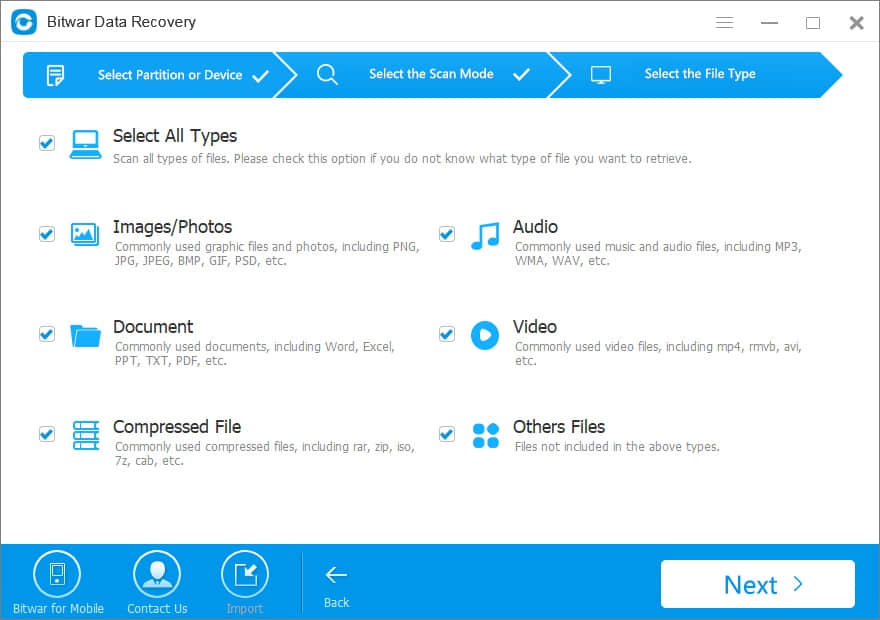
Select the file type you want or choose "Select All Types" and click on the Next button to start scanning. Bitwar data recovery software can recover all types of files, including photos, videos, audios, documents and so on.
Step 4: Retrieve Data from Hard Drive
After the scan, you can select all found files from the scan results and preview them separately. Bitwar Data Recovery supports previewing as many as 300 different file types. When you find the lost data, you should select them and click the Recover button. Then a window will pop up to ask you to select a path and location to save recovered data.
Don't directly store the needed data in the original partition where data loss or the deleted data will be overwritten, causing data damage or data loss permanently. You can retrieve the lost file under the new path of the new partition.
Moreover, we can export all scanning results to a specified place after scanning in Bitwar Data Recovery, which makes it possible to load previous results without rescanning. BUT, please do not export results to the location where data loss appears, because it may overwrite lost data.
Let's try!
Please refer here for more about Windows XP data recovery.
评论
发表评论