Although CDs and DVDs are gradually being replaced by more portable, reliable, capable storage devices such as SD cards and flash drives, their existence was once abundant for many years. Being less competitive now doesn’t keep CDs and DVDs from serving as a plausible choice for game installation packages, movies, and music files.
Like other storage devices, CDs and DVDs were born vulnerable. Sometimes they can get scratched easily or seize up suddenly. Consequently, computers fail to detect them and we believe the data on them is gone. But the good news is that scratched discs could be repairable and the data on them could be accessible and recoverable. Have you ever wondered why that’s possible and how to recover files from CDs and DVDs? Let’s take a brief look!
Note: We’ll talk about CDs throughout this article. But the way CDs work holds true for other similar storage devices, for instance, CD-RWs, DVD-RWs, and Blue-ray Discs.
1. What Is a CD?
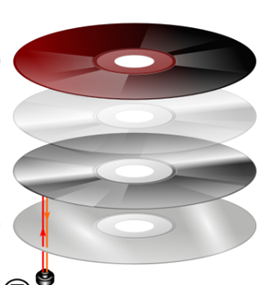
A compact disc is a thin, shiny, circular disc that has three principle layers and a label on them. Generally, the relatively thick bottom of a disc is made of a brittle plastic called polycarbonate. Beneath the label rests a protective layer of plastic and lacquer. Sandwiched between the two layers there is a thin lay of aluminum. This lay of aluminum is an important part of a disc. Being reflective, it allows laser lights to read the information on the polycarbonate layer and makes one side of a disc shiny.
And the other side, the dull side, usually has some label or artwork on them illustrating what contents on a disc. Then go back to the question, why it’s possible to repair a scratched CD and read it? Since scratches on the shiny side cause laser beams from a CD reader to scatter and make the reading inevitably hard, if we can remove the scratches from the disc, the laser beams thus will go directly toward the lay of aluminum and be reflected to read the data. Therefore, up to this point, we need to find some apposite materials to remove scratches.
2. What We Can Do to Remove Scratches on a CD?
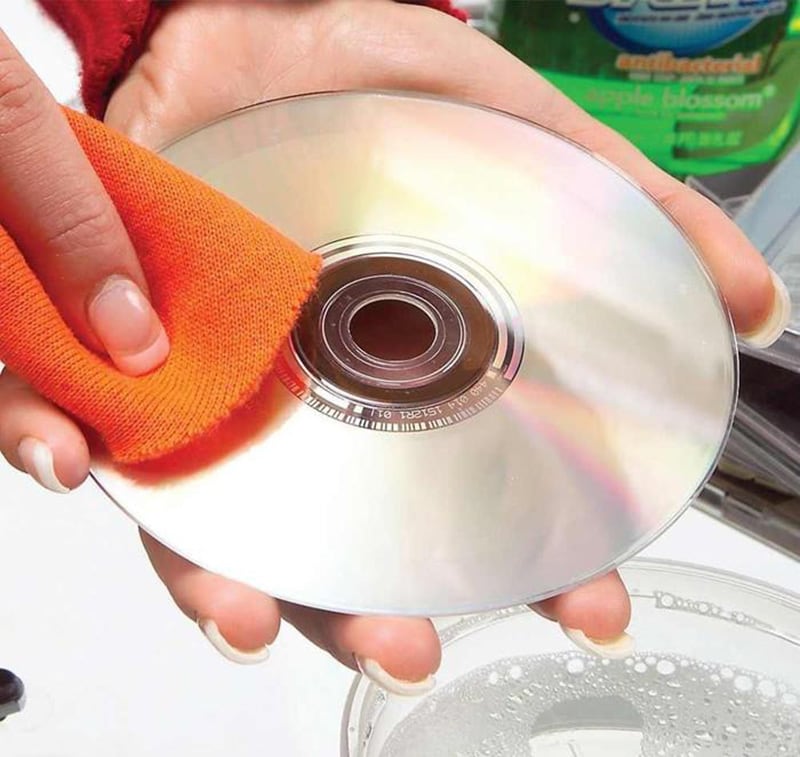
First of all, make sure that you have cleaned the CD. It will be better if you can put some alcohol or a gentle detergent on it and carefully rub the disc with a soft lint-free cloth in a radial way until there are no more dirt and footprints except scratches.
Method 1: Repair Scratched CDs with Toothpaste
Step1: get one of your fingers wet or find a wooden toothpick for latter rubbing.
Step2: deposit a few drops of a tube of toothpaste on the shiny side (scratched side) of the disc.
Step3: softly wipe the drops from the center point toward the edges of the disc. DO NOT rub round and round.
Step4: wash the disc with some tepid water and let it dry. DO NOT expose it in the sun.
Step5: mount the disc to see if the computer can detect it.

Method 2: Repair Scratched CDs with Wax
Step1: Apply a thin lay of softened wax such as shoe polish, lip balm, and furniture wax on the shiny and scratched side of the damaged disc.
Step2: rub it slowly and radially with a piece of lint-free cloth.
Step3: leave it drying
Step4: connect the disc to your computer to see if it can be accessed.
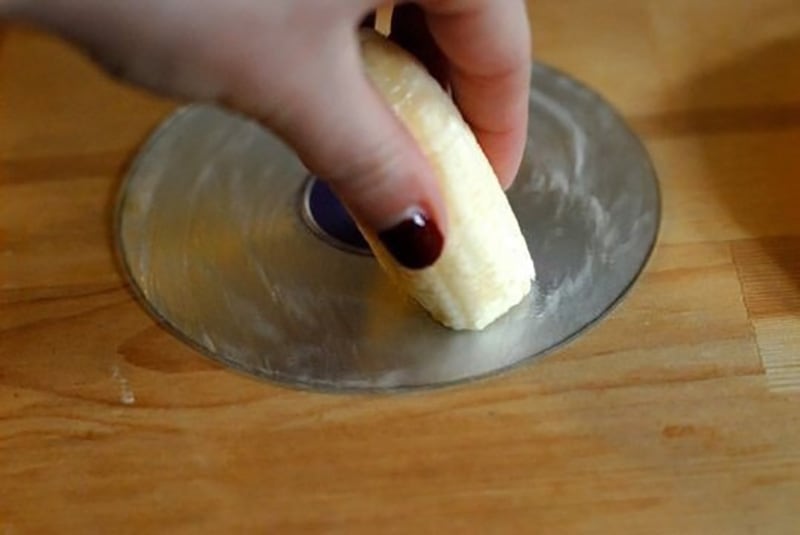
Method 3: repair scratched CDs with a Banana
It’s stunning but it’s true.
Step1: get a banana and peel it. keep a part of it and finish off the rest. DO NOT toss the peel away.
Step2: use a radial motion with the inside of the banana peel and softly press the banana on the shiny side.
Step3: wash the disc with some warm water and let it dry.
Step4: Test the disc.
3. How to Recover Files From a Scratched CD?
If all the methods written above have been tried out and the disc remains undetected. I recommend using Bitwar Data Recovery Software to fix the problem. With a plethora of data recovery applications on the internet, there are only a few tools that can recover files from some damaged optical storage devices including CDs/DVDs/CD-RWs/DVD-RWs/Blue-Ray discs, etc. It can be downloaded and installed within seconds and is easy to use.
Step 1: Download and Install Bitwar Data Recovery
You can download the best CD/DVD data recovery tool – Bitwar Data Recovery from its official website: https://www.bitwar.net, after downloading, install it right away and then launch it.
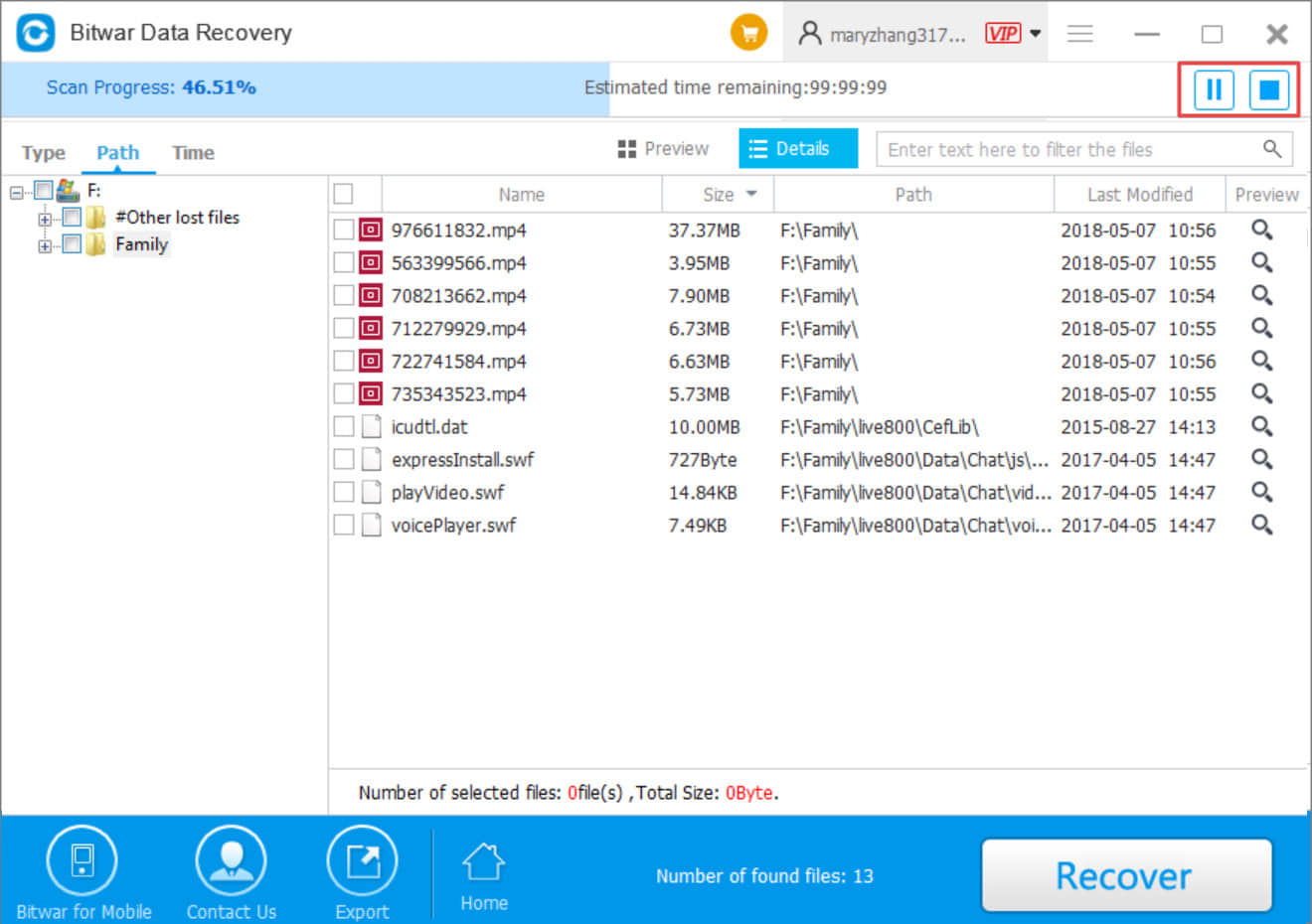
Why not have a try?
Please refer here for more about Scratched CD data recovery.
评论
发表评论