Have you ever met the "computer keeps freezing" error on your windows? Don't worry. This article will show you seven solutions to solve the problem that the computer keeps freezing error without losing data.
The computer keeps freezing is a fairly common problem. In fact, as your computer is frozen, the operating system has become inundated with application requests resulting in the computer locking up before it's able to present you with an error message. Generally, it does not mean that the computer is broken, but rather that processor encountered an overload that cannot be handled. It can be a very frustrating experience, especially when you are working on something but don't have time to save them.
The main reasons for "computer keeps freezing"
1. Overheating
If the temperature of your system processor is higher than usual, your computer may freeze. To avoid this, please make sure that your computer's vents are not blocked. And the CPU is the greatest concern as it is extremely sensitive and integral to the functionality of the computer. It cannot withstand temperatures over its threshold for too long.
2. Driver Corruption or Errors
Drivers are pieces of software that allow hardware devices to communicate with other hardware devices and the operating system. However, hardware failure can cause a system to freeze. Drivers being constantly used by the computer system causes a high risk of failure. The best thing you can do for your drivers is to update them to the most current version.
3. Too many programs on the computer are opened
Each program on your computer needs some internal and hardware resources to keep it running. If multiple programs are running at the same time, your computer will start to freeze because memory is used by a number of programs.
In this situation, you should right-click Task Manager, choose Task Manager, click the Processes, find the program that is frozen and click End Task. It is recommended to run programs you need only.
4. Faulty external devices
Faulty USB or other external devices, including the mouse and keyboard connected to the system, can cause computer freezes. You can try connecting one device at a time to try or updating the device drivers to fix this problem.
5. Computer viruses
Sometimes computer freezing is a sign of your system being infected with the virus. It is recommended to perform an antivirus check regularly and make sure your antivirus software is up-to-date.
6. Corrupted or missing system files
In addition to the above-stated reasons, many other reasons like insufficient RAM, third-party software errors, broken memory cards, low disk space, etc. can cause computer freezing.
If you encounter data loss due to the above-mentioned computer freeze reasons, you should backup or restore the data on the drive first. You can recover maximum possible data via the best file recovery software Bitwar Data Recovery. It supports to restore lost data due to deletion, formatting, virus attacking, system crash or other unknown reasons under Windows 10/8/7, etc.
How to recover data with Bitwar Data Recovery
If your computer keeps freezing, you cannot be able to do anything on it. So after multiple restarts are invalid, you may need to remove the hard drive on the computer and connect it to another computer to backup or restore important data firstly.
Download and install Bitwar Data Recovery on your windows, then follow the guides to recover data.

How to fix "Computer Keeps Freezing."
Method 1. Free up disk space on C drive
Please make sure that you have enough free disk space on C drive. If not, you can try deleting some unwanted data or programs on your C drive.
Method 2. Update all device drivers to the newest
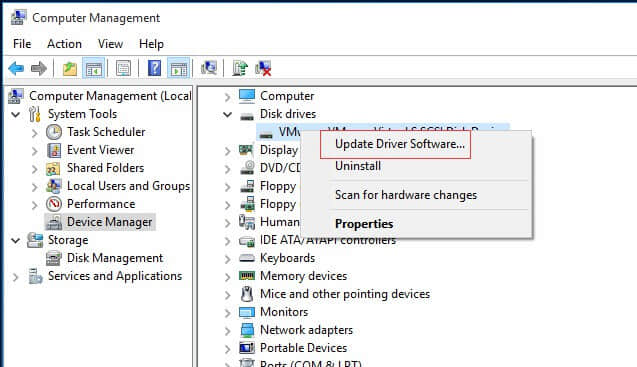
1) Right-click "This PC/My Computer," then click on "Manage" and then "Device Manager."
2) Open the category that you want to update.
3) Update drivers depending on your version of Windows:
Method 3: Run Memory Check
If you suspect your computer has memory problems, you can run the Windows Memory Diagnostics utility by completing the following steps:
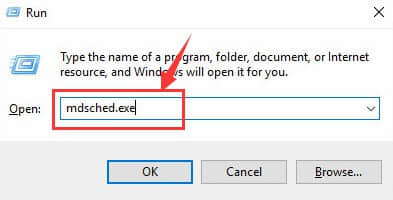
Press "Windows+R" keys, type "mdsched.exe" in the run box and hit "Enter."
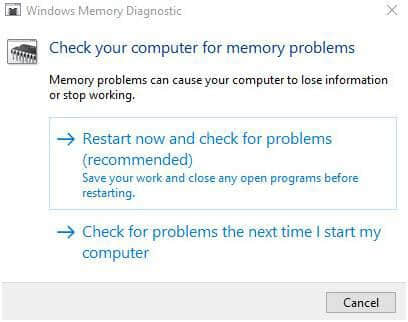
Click "Restart" now and check for problems (recommended) to check for problems immediately.
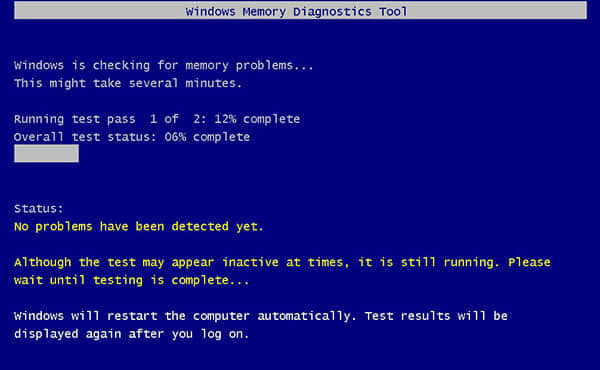
Windows will then restart, and you will get the following window showing the progress of the check and the number of passes it will run on memory. It might take several minutes for the tool to finish checking your computer's memory.
Method 4: Run System File Checker
1) Click "Start," and then type cmd into the search box. Right-click "Command Prompt" and choose "Run as administrator," and click "Yes" button.
3) Type SFC /scannow and press Enter button.
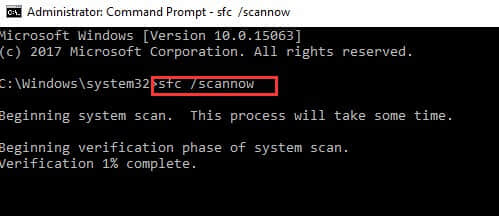
4) Windows will scan your system for corrupted files, and attempt to fix any it finds.
5) Type exit and press Enter button.
Let's try it now!
Please refer here for more about Computer Keeps Freezing.
评论
发表评论