This page introduces How to recover deleted photos from iPhone with or without backup. You can choose one of the recovery methods according to your actual situation.
iPhone is one of the most popular smartphones. It equipped with a high-definition camera and used to record just about every aspect of users' life. Undoubtedly, most iPhone users have lots of photos stored on their iPhones. However, people always accidentally delete photos that they don't want to delete.
You know, no matter how cautious you are, data loss still happens. This cannot be avoided and is already late when things happened. The main purpose of this article is to explain how to recover deleted photos from iPhone. If you are experiencing such a problem, please keep reading the following article.
How to Recover Deleted Photos from iPhone?
The best and easy way to fight against any data loss from any storage device is backup. Always sync your important data including contacts, messages, notes, photos, videos, etc. to iCloud, or backup iPhone SE contents to a Windows PC or Mac using iTunes are good habits. So when you have deleted photos from iPhone, the first thing you need to check is whether you have backed up by iTunes or iCloud.
If you didn't make a backup file before and need to find a way to recover your deleted photos, a professional iPhone data recovery software will be needed in this situation. Here I would like to introduce Bitwar iPhone Data Recovery for you, it supports to Recover from an iDevice. So you can recover deleted photos from iPhone/ iPad/iPod with or without backup.
Tip: Bitwar iPhone Data Recovery can directly detect whether iTunes is installed on the computer, and download the installation components directly without installation. If there is an installation or a computer that has backed up Apple data using iTunes, it can directly select the feature to scan from the backup.
The first time to access the iPhone needs to install the necessary fruit and devices, with a time of 3-5 minutes, please be patient.
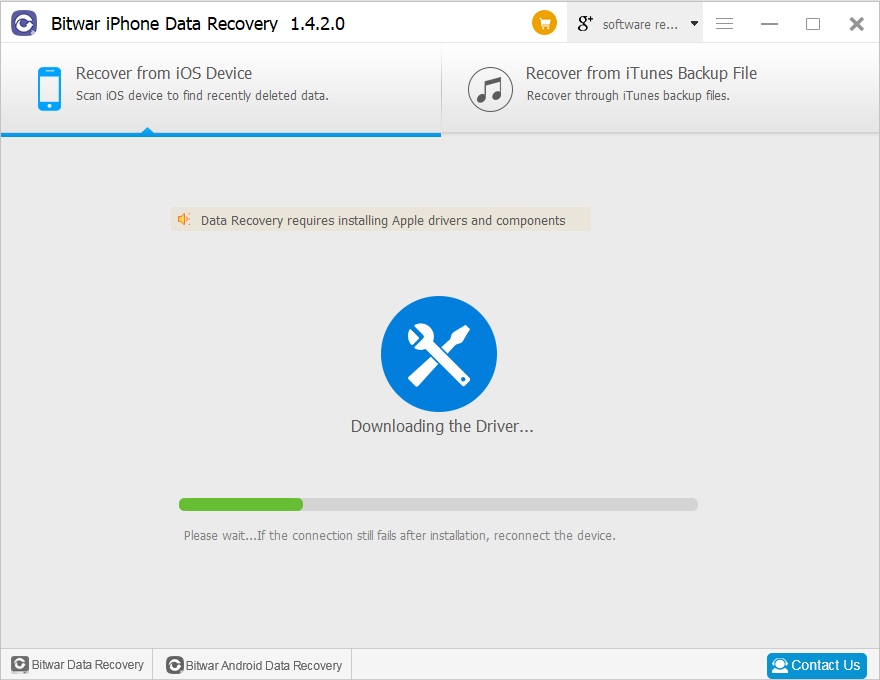
Install Bitwar iPhone Data Recovery
First of all, stop using the iPhone right away. This reduces the possibility that the deleted data you are trying to recover gets overwritten. And then install iTunes tool and Bitwar iPhone Data Recovery software on your Windows or your Mac. iTunes can help Bitwar iPhone Data Recovery find the deleted data with more details. If you want to recover data from iPhone or other iOS devices, just install it and you don't need to start and using it.
Download Bitwar iPhone Data Recovery: https://www.bitwar.net/ios-data-recovery-software/
Steps to Recover Deleted Photos from iPhone:
If you have no backed up with iTunes before, you also can recover deleted photos from iPhone.
Step 1: Select the mode "Recover from iOS Device"
When Bitwar iPhone data recovery installed on your computer, start the Bitwar iPhone data recovery program and connect your iPhone to the computer with the original USB cable. Select the default recover mode "Recover from iOS Device".
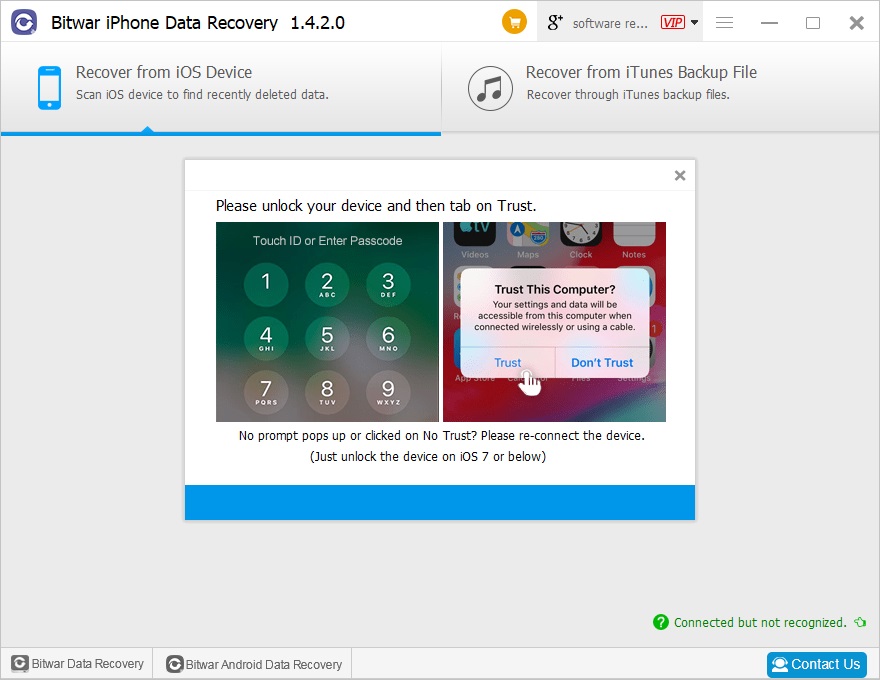
Step 2: Select the photos type
After the iPhone has been identified, the program jumps to the Select File Types page automatically. Select the photos type and then click "Start Scan".
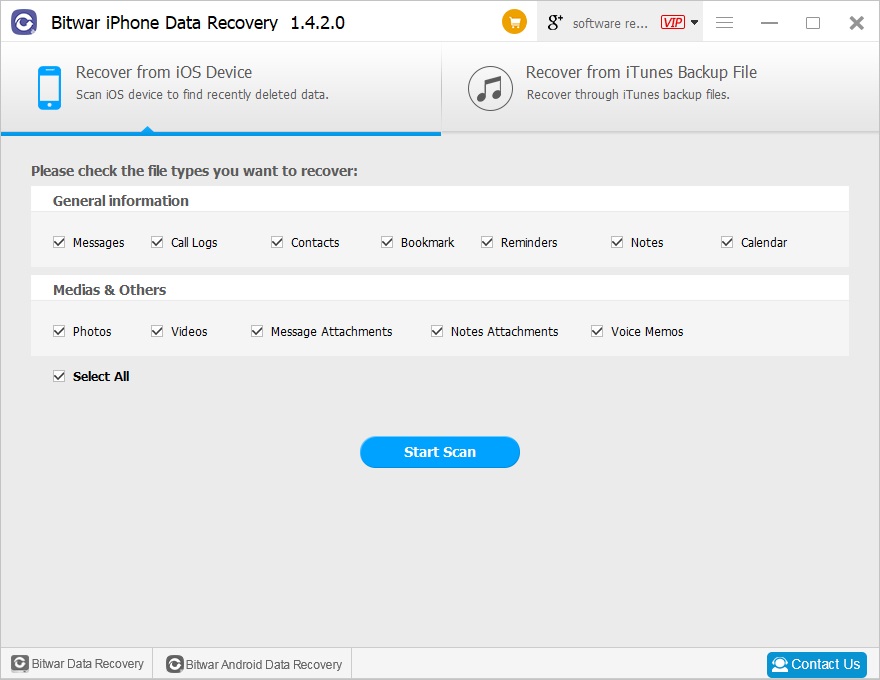
The software will quickly scan your iPhone to find all the existing and deleted photos. All you have to do is keep your iPhone connection during operation.
Step 3: Preview and recover photos
After the scanning, all scanned photos on the iPhone will be displayed out in the program. From the type of area on the left, the software will let you know how many existing and deleted files have been found. You can preview them and mark the ones you want, then click the "Recover" button to save them on your computer very well.
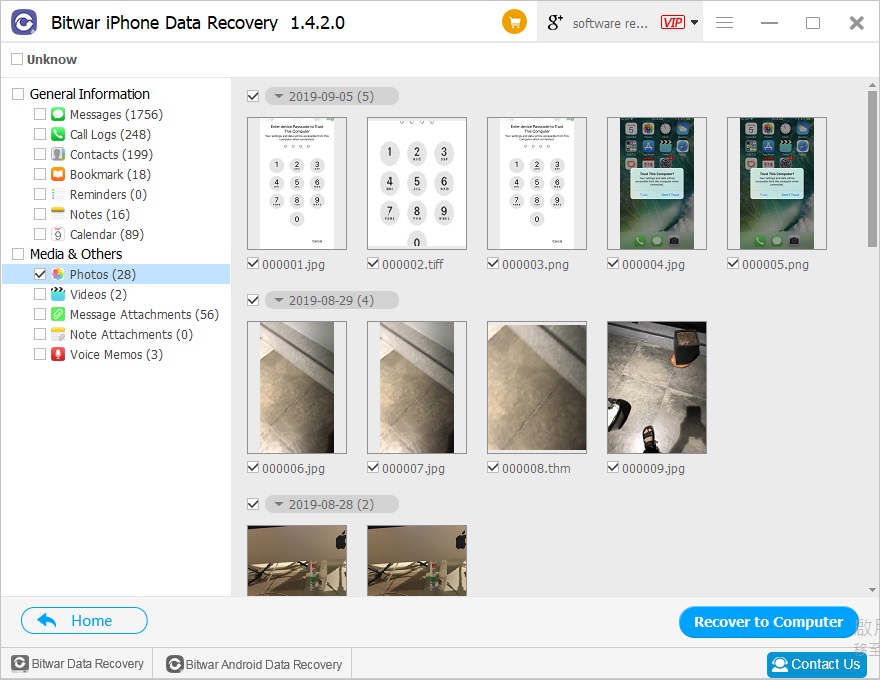
Try It Right Now!
Please refer here for more about iPhone photos data recovery.
评论
发表评论