There's nothing more upset than losing data. Especially when we don't have an emergency plan. What can we do to recover lost data? This article will show you a free and reliable easy data recovery software to recover your precious data.
Why can the data recovery software recover the lost files?
The lost files still exist in the hard drive, no matter you deleted the files, emptied the Recycle Bin or formatted the hard drive. The data are hiding in the hard drive after the system marked the space where the lost files stored as free space. You can still get back those files by erasing the free space mark with easy data recovery software
Three questions before downloading easy data recovery software.
Everyone knows the pain of data loss. The only idea in our mind is recovering lost data as soon as possible. However, before searching for easy data recovery software in Google, there are three questions worth thinking about:
1. Does the software offer a user-friendly interface?
2. Does the software provide a Free Trial chance?
3. Is the software powerful enough to recover lost data?
Then, I would like to suggest downloading Bitwar Data Recovery.
Why can you rely on Bitwar Data Recovery?
Bitwar Data Recovery is fully compatible with Windows 10/8/7/Vista/XP. The software is specialised in recovering docs, photo, video, music and archive files. With the latest data recovery algorithm, Bitwar Data Recovery supports accidental deletion recovery, format recovery and raw recovery from SD card, memory stick, PC/Mac, hard drive, camera storage mediums, USB drive and Recycle Bin, etc.
Bitwar Data Recovery is an easy and reliable data recovery software, which offers a user-friendly interface with step-by-step mode to recover lost data safely and completely.
Key features of Bitwar Data Recovery:
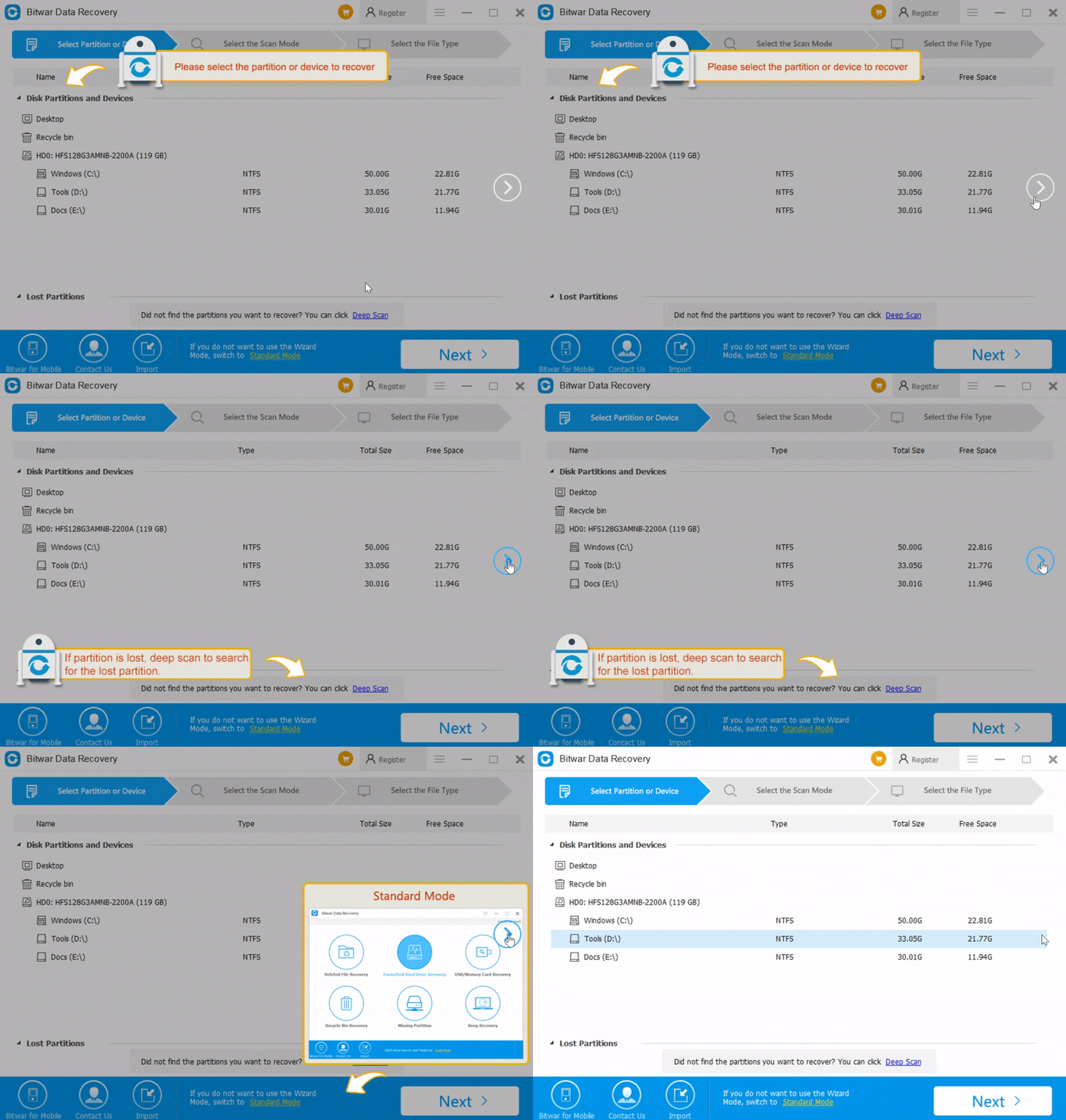
1. There are Bubble Tooltips for the first run of the software:
By following the bubble tooltips, it's easy for you to know how to perform data recovery step-by-step. We received many compliments on this function which helps them through the program without any tech skills.
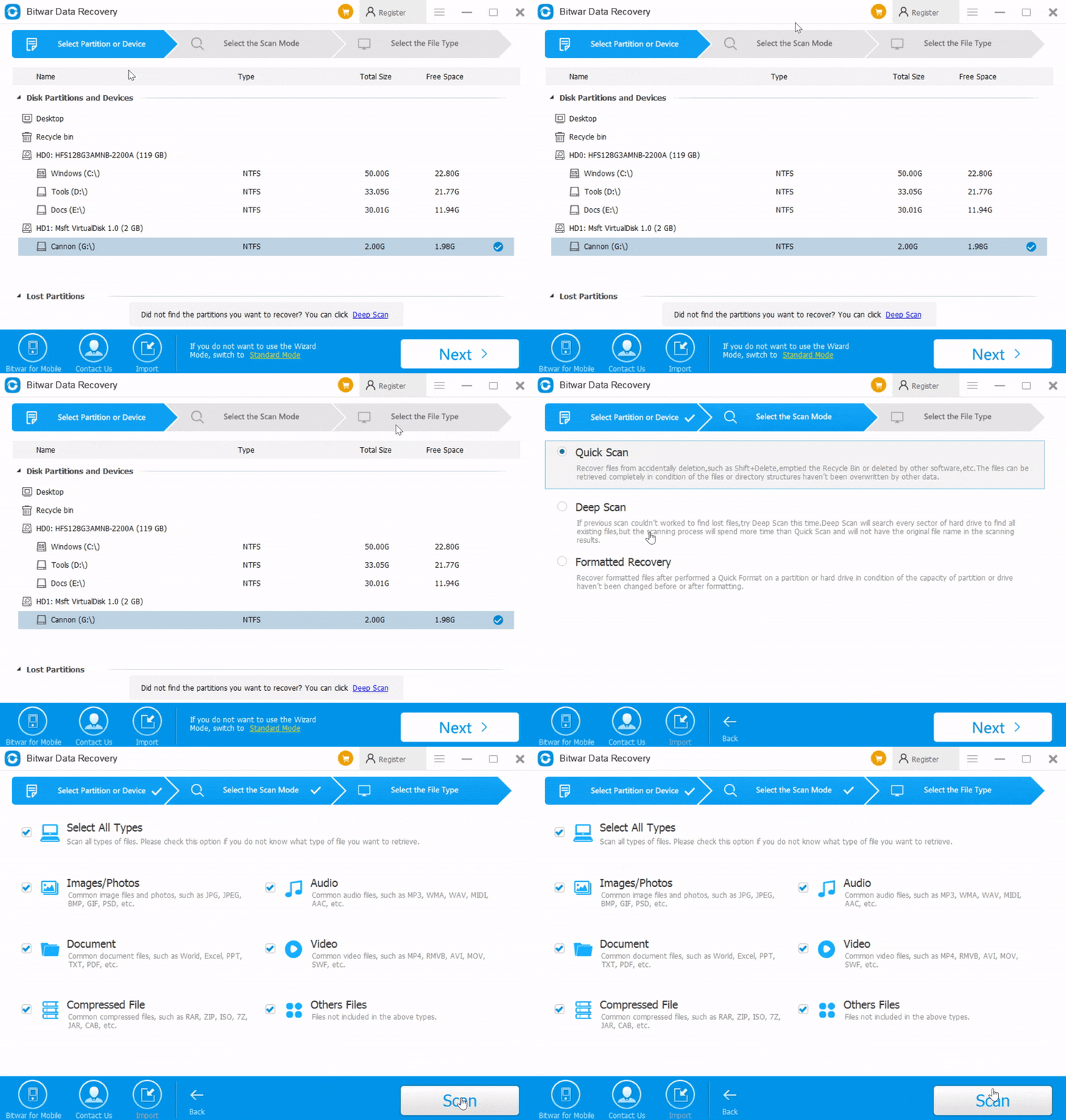
2. Easy three-steps recovery mode
Bitwar Data Recovery has developed the three steps recovery mode to make data recovery an easy thing. No matter you are an experienced user or green hand, most of you will understand how to restore lost data with Bitwar by following the guide at the top of the software.
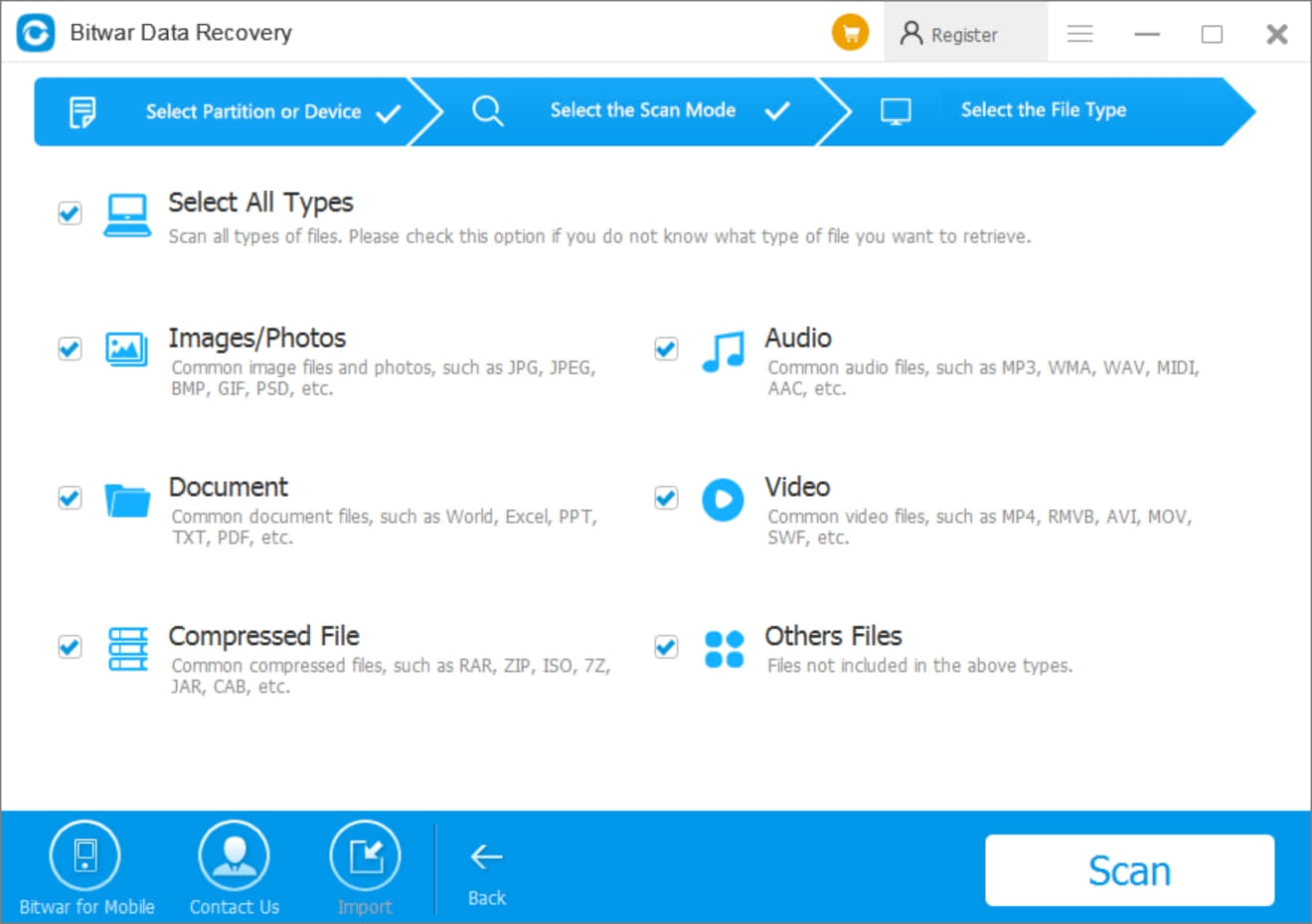
3. The software supports to recover any of the file types.
Sometimes, users do not exactly know what kind of files have lost. Therefore, the most concerned question is to find an easy data recovery software to help them recovering whatever they want. Luckily, Bitwar Data Recovery supports all the file types that run on Windows or Mac.
4. The software allows you to preview more than 300+ file types.
Why have all of the software suppliers developed the preview function for their users? Because the preview function is a way to help users to check the data is still complete for recovery or not. Bitwar Data Recovery is walking ahead from its rivals to support more than 300+ file types. It also allows users to play the GIF animated image, video, audio file inside the software.
Want to read more articles about easy data recovery? please click here.
评论
发表评论